
The first time I sat in front of the Windows 8 interface, I have to admit I was not thrilled; no Start button, I couldn’t find the control panel, things just weren’t what I was used to. That was over two years ago in the early adopter program for Windows 8, and now when I use Windows XP or Windows 7, I find it very inefficient to “have to click through so many menus” to find and do basic stuff.
The focus of this article is to share with you not simply how to make Windows 8 work like Windows XP/Windows 7 “the old way” (which I will go through and give you tips on how to find stuff and configure stuff to work the old way), but instead to really focus on how to do things better and more easily, effectively helping you shortcut the learning process that makes Windows 8 actually extremely easy and efficient to use.
First of all, some basic terminology and “old way” of finding things so that I can take you through Windows 8 in a way you have learned how to use Windows. As I’m sure you are aware, Windows 8 no longer has the “Start Button” at the bottom left of the screen. Instead, Microsoft has the “Windows 8 Style Menu” (that they formally called the Metro style menu, until Microsoft was informed Metro Style was copyrighted, so they’re just calling it the Windows 8 Style menu). This is the menu that Windows comes up with.
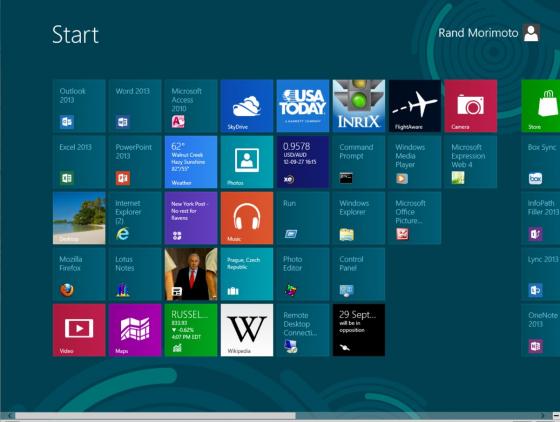
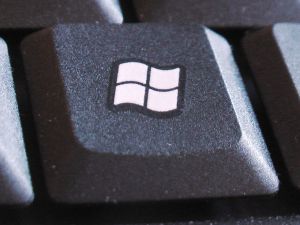
If you are in the middle of an application (browser, Word, or any other app) and you want to get back to the menu, on a tablet, you press the “Home” button (usually a physical button on the bottom middle of the tablet device) or from a keyboard system, you press the “Windows-key.”
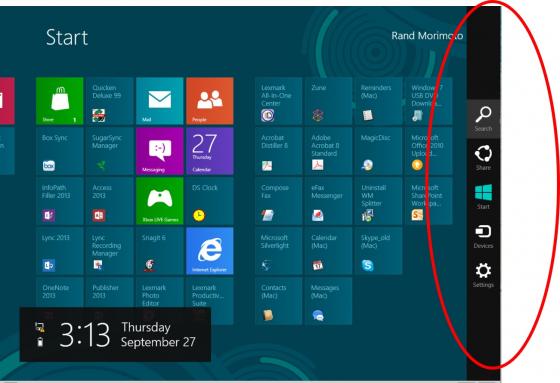
The “start button” for the most part (the thing that gives you access to the Control Panel, shutdown/restart, etc) is called the “Charm” and it pops up on a touchscreen tablet when you swipe your thumb from right to left on the right side of the screen (basically swiping the charm menu out from the right edge and into your screen of view). On a keyboard system, the charm menu pops up when you move the move cursor all the way to the right bottom of the screen.
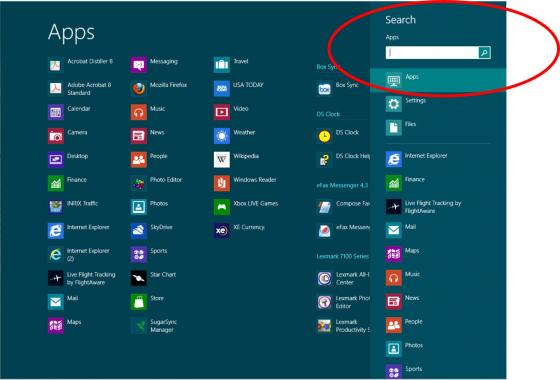
From the charm menu, you can click on the top most icon (“search”) and it shows you all of your applications installed (this would be similar to doing a Start/All Programs in Windows 7). You’ll see the search bar (circled in red) and on the left you can scroll through all of your apps.
When you search/find the app you want or simply just scroll through the apps off this Charm/Search view, you can right-click the application, and at the bottom of the screen you are given options to Pin to Start, which adds the app to your Windows 8 Style Menu (THIS is a good idea as it puts a shortcut on your main menu screen so that every time you press the Home button or press the Windows-key, your apps show up on the main menu). You can also Pin to Start things like Control Panel, Command Prompt, Run, etc. I usually Pin everything I usually use/access to the Start which makes it easy for me to just go back to the main Windows 8 style menu to launch my apps!
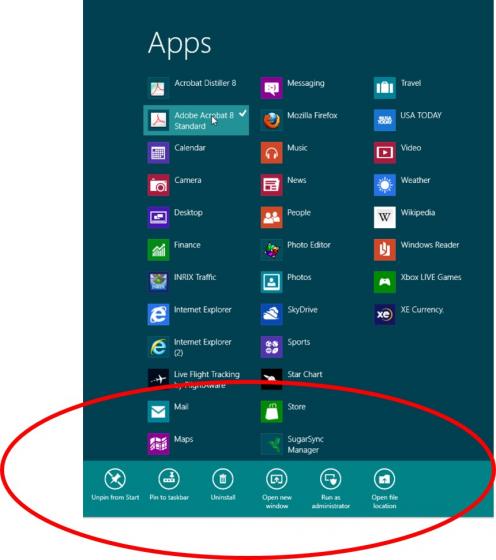
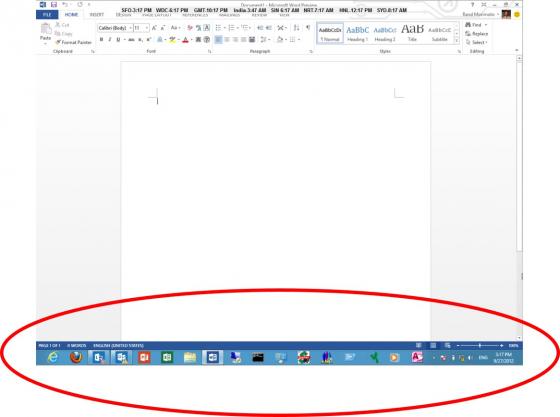
Note: You’ll also see when you right click an app, you can also Pin to Taskbar (this pins to the old Windows 7 style taskbar at the bottom of the “Desktop” screen). I used to Pin stuff to the Taskbar, but now that more and more apps are coming out with Windows 8 menu icons (like Office 2013, SkyDrive, Box.net, Real Player, etc), I no longer find myself working from the older Win7 “taskbar.” This is one of those crutches you can continue to use, or just move into the 21st Century and start using the native Windows 8 menu.
Note: You’ll also see when you right click an app, at the bottom of the screen you can choose to run the app as an Administrator, uninstall the app, find the file/application location. These are helpful “things” we used occasionally in Win7 in the past that you now have shortcuts to run.
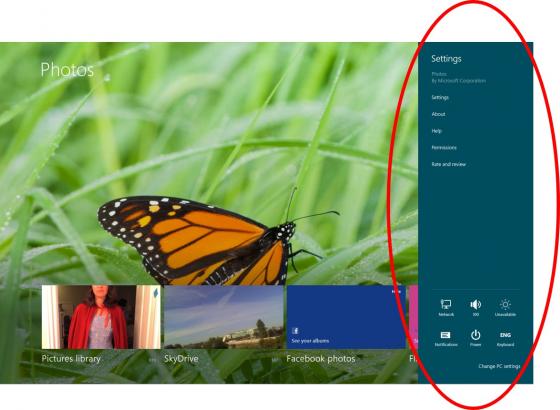
Another option off the Charm Menu (when you move your mouse cursor to the bottom right, or swipe your thumb right to left off the right edge of a tablet) is the Settings options (the bottom-most option on the charm) when you click on Settings…
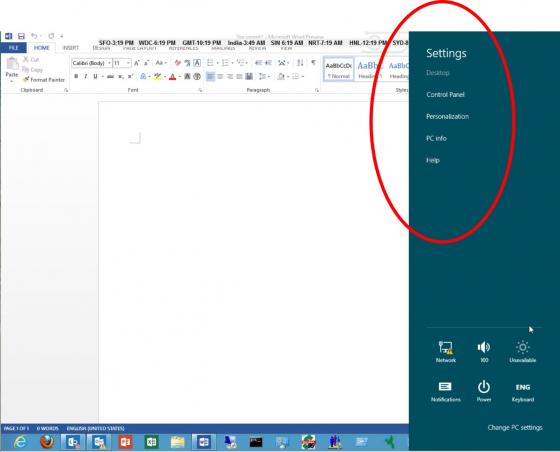
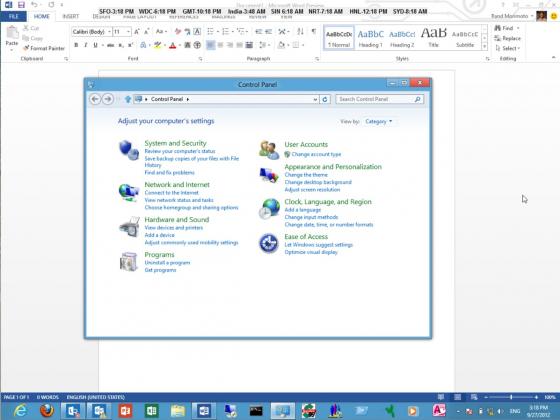
…this is where a LOT of common things are found, such as Control Panel…
…Power (where you choose to shutdown/restart the computer/device), Network (where you select the WiFi connection you want to connect to), Change PC Settings (where you can change other things that are not in the Control Panel like desktop background, the photo you associate to your logon…
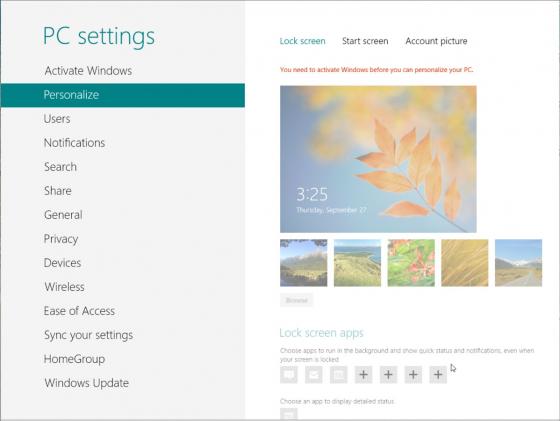
…add printers, etc).
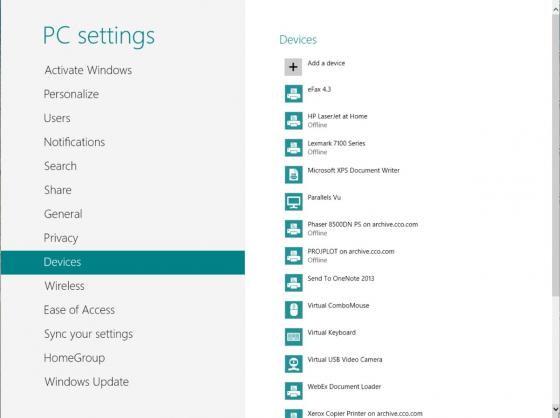
Basically click on this Settings place and you’ll get to a lot of things you may normally access for configuration.
Okay, so with the basics under your belt, here’s where you learn to be a Windows 8 person and not a WinXP/Win7 person trying to run Windows 8. Instead of moving your cursor to pop up the charm to then click on Search to then find your application, or instead of moving your cursor to pop up the charm to then click Settings to then go to the Control Panel…you would do one of two things. If you are on a Tablet (or a keyboard-based Win8 device), ADD all of your apps, control panel, etc. to your Windows 8 style menu. It’ll take you a couple minutes to right click and “Pin to Start” all of your apps and utilities, but once they are pinned, you will almost never have to go fiddle with the charm thing. You’ll just press the Home button (on a tablet) or press the Windows key (on a keyboard-based system) and from the menu, click/tap the app and you run the app. To “switch” to another app, press the Home button or press the Windows key and click/tap the other app you want to run. All apps stay in memory; you just “toggle” between apps by simply pressing the Home button or pressing the Windows key to get to your apps.
Note: On a keyboard system, you can still Alt-Tab between apps, so toggling between apps is really easy. No more Start/Programs to get to applications. No need to Charm/Settings/Control Panel to get to the Control Panel if you simply pinned the Control Panel onto your Windows 8 style main menu!
So what happens if you want to access an app that you did not pin to your menu? On a keyboard-based system, at the Windows 8 Menu, just start typing a few letters of the app or function you want to do, and the “search” starts working immediately. For example, at the Windows 8 menu, if I start typing the letters n-o-t-e-p, the search bar will appear in the upper right and it’ll zero in on the Notepad application on the left.
Assuming the app is highlighted on the left, just press the Enter key any time and it’ll launch that app, no key clicking, nothing extra. If it pops up several apps with n-o-t-e-p, then either keep typing to zero in on “the app” you want and press Enter to launch, or you can arrow around/tap-touch/click on the app name on the left side to select “the app” you want. Fiddle with this, but effectively this is a very quick way to launch apps that may not be on your Windows 8 menu (yet).
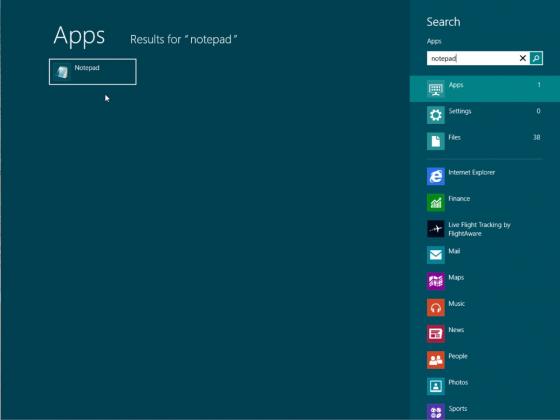
If I start typing w-o-r-d, if I have Microsoft Word on the system, it’ll show me Word, or e-x-c-e-l will give me the option of launching Excel. Or even things like p-r-i-n-t-e-r will pop up under Settings the option for me to “Add a Printer,” or n-e-t under search settings will show me options like “Connect to a Network.”
Between Pinning things to Start and simply typing a few letters of something, I can launch apps, run utils, add printers, and do things on a Win8 system FASTER than what I thought was super efficient in WinXP or Win7. This was the trick to making Windows 8 easy to use.
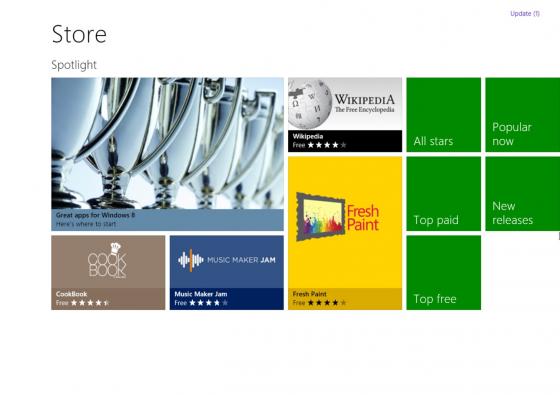
Now that you have the navigation thing figured out, go to the Windows Store and download “apps” for your most common things you do, so things like there are Box.com apps, Acrobat reader apps, Picture viewers, Real Media Player app, etc.
Note: When you are in the store looking for apps, as much as you can scroll through the “Popular” apps or “Top free” apps it shows you on screen, if you wanted to “search” for an app to download, it’s not intuitive how to search for an app. The way to search for an app is when you are in the Store, pull up the “charm” thing (move mouse to the bottom right, or on a tablet, swipe your right thumb right to left to have the “charm” menu on the right side pop out and then use the “search” function in the charm). So just as you “searched” your apps earlier in this blog to find stuff on your local computer, when you are in the Store app and do a search, it’ll now search for apps in the Store (ie: searching for Acrobat, or Box, or Alarm Clock, or USA Today or the like).
When you install the app, it shows up on your Windows 8 Style menu. Simply clicking the app launches the application. However, from your Windows 8 Style menu, you might want to move your most commonly used apps to the left side of your menu so they are visible to you more frequently when you pop up the Windows 8 menu. To move the app with a mouse/keyboard, just click and hold down the mouse button down and “drag” the app to the left. On a touch tablet, you touch the app with your finger and then slide the app “down” and then to the left. This took me a while to figure out as I logically tried to push the app with my finger and immediately drag to the left which would tend to just launch the app. The trick is to touch the app with your finger, drag down a bit, then to the left to move it around! Move any non-commonly used apps from the left side over to the right side so they are out of your way.
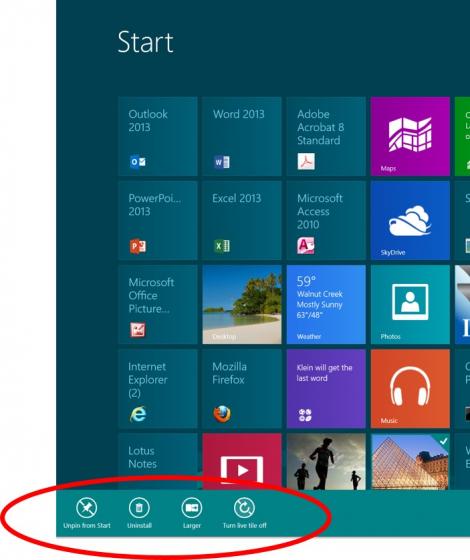
Many times apps take up two spaces on the menu. I hate that. I’d rather have all of my apps as the small 1-square wide icon. All you do is right-click the app icon and at the bottom it’ll show you “larger” or “smaller” to make the icon a different size. Some have this option to make small icons larger. Oddly, you cannot tag multiple icons and make them all “Smaller” at the same time, you have to right click and “make smaller” one by one. It takes a few seconds to do, but buys you back more real estate on your Windows 8 menu to get more apps 1 click away to run. (Note: if you have a touch tablet, some of these first time configurations are BEST off doing with a mouse. I would usually plug a USB mouse into my tablet and run through some of these basic right-click configuration things, or drag/drop icon things as it is a LOT faster with a mouse. Everything “can” be done with your finger on a touch screen; it’s just not as efficient if you have a lot to configure/setup).
When you are in a Windows 8 app, you likely find there are no application configuration options, settings, things you can do with the app that you have in Windows XP or Windows 7 apps might have found as Tools/Options, or Options/Settings. With Windows 8, apps typically DO have configuration settings, you just have to know how to find them. Here’s the trick, app settings are in the Charm/Settings on Windows 8. Launch and sit in the Windows 8 application, and then with a touch tablet, swipe your right thumb from right to left off the left edge of the tablet screen, and press Settings; with a keyboard system, move your mouse cursor to the bottom right to pull up the Charm menu, then click Settings. With the Charm/Settings exposed, you’ll see configuration settings for that app!
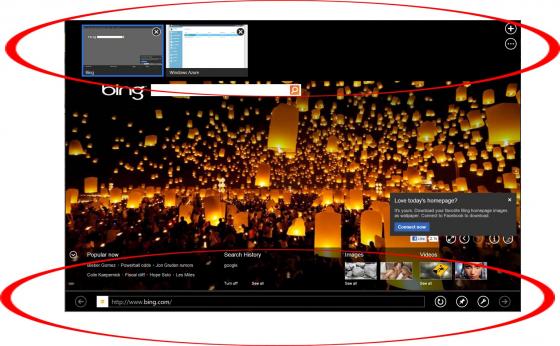
Also, when you are in a Windows 8 application, there are frequently more options when you “swipe down” from the top of the tablet, or “swipe up” from the bottom of the tablet screen (or on a keyboard-based system, you position your mouse cursor at the top of the screen where a bar appears, or you move the mouse cursor at the top of the screen and right-click). As an example, when I’m in the Internet Explorer in Windows 8 and want to have the Address Bar appear, or I want to switch between IE “tabs”, things like the below pop up and give you additional application options…
For applications on your Windows 8 menu, there’s also this thing called “Live Tile,” in which the icon changes screens, like the way the CNN news live tile shows you the latest news and flips through things, or the Photos “Live Tile” flips through your pictures. You can turn Live Tile off (again, right click the icon, choose to turn Live Tile on/off). I find it annoying to have the thing flip through stuff when I don’t remember what icon is what, but it’s really your call.
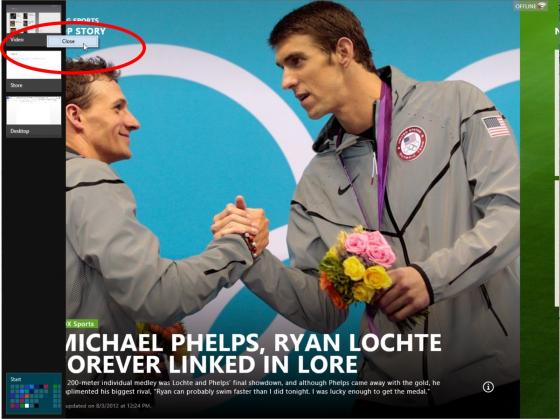
To flip through running apps, you can Alt-Tab from a keyboard-based system, or from either a mouse or touch tablet, move the cursor to the upper left hand corner and little tiles of the running apps show in the left margin of the screen. You can right-click and “close” any of those running apps. I used to close apps all the time as I’m old school and after running an app and don’t need it anymore, I close it. But after a while, I just leave the apps running. They don’t take up processing power and with 4-8GB of RAM in my systems these days I have plenty of memory. Every now and then I reboot my device/tablet/system but on occasion, and I will run my finger to the upper left and choose apps to close.
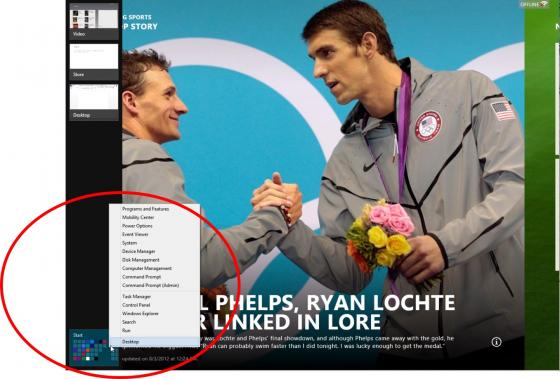
And a hidden thing in the bottom left corner of the screen is a “start”-type button thing that when right clicked will show you a list of common tasks like Event Viewer, Disk Management, Command Prompt, Task Manager, Control Panel, Windows Explorer, Run, etc. It’s sometimes helpful to use that, although these days with most stuff on my Windows 8 Menu or I just type a few letters, I don’t bother with these various other menu things, but just FYI…
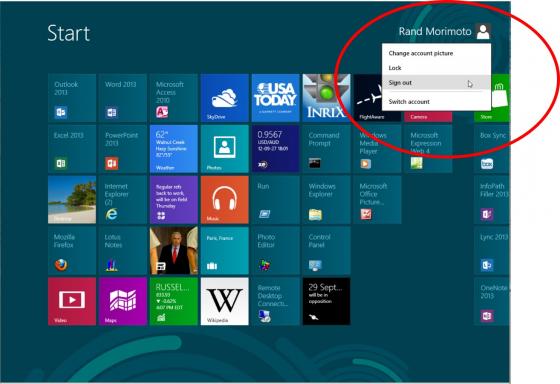
Logging Out of a system is done by click on your name from the Windows 8 Style menu as shown in the Figure here:
To shutdown or restart the computer, you can navigate the menus (like Charm, Settings, Shutdown), or what I did was create a Windows 8 style menu “app” that I simply click that’ll shut down my computer. You effectively create a “shortcut” on the “desktop” and then you “Pin to Start.” That’ll add the shortcut to your Windows 8 menu. Here’s what it looks like:
1) From the Windows 8 menu, click Desktop to switch to the old Windows 7 style desktop
2) Right click on the desktop and choose New | Shortcut
3) When prompted for the Location of the item, enter in c:\windows\system32\shutdown.exe /p as shown below, then click Next
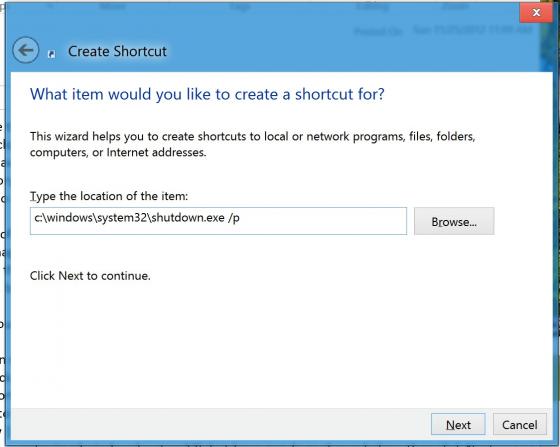
4) For the name of the Shortcut, type in something like Shutdown, then click Finish
5) Right click on the shortcut that is on your desktop and choose Pin to Start
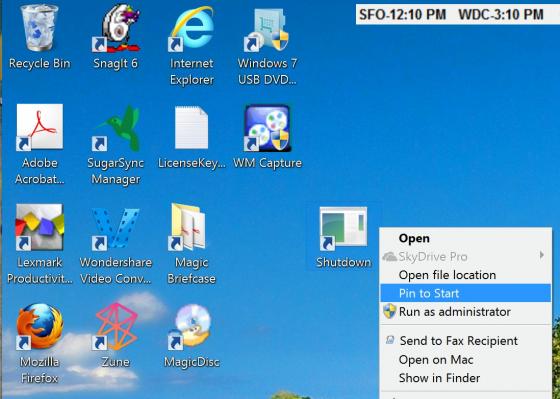
You now have an icon on your Windows 8 menu that allows you to shutdown your system with a single click.
You can change the command syntax in #3 above to restart the computer by making that c:\windows\system32\shutdown.exe /r or /h at the end (instead of /r) will hibernate a system.
Oh, and one more thing – so once I tricked out my Windows 8 menu with all of the icons I wanted, how do I transfer my icons, menu items, etc. to other systems? Microsoft came out with this thing called the User Experience Virtualization (UE-V) that is the new generation of “roaming profiles.” However, unlike roaming profiles of the past where EVERYTHING was moved from system to system whether you wanted it or not (ie: registry settings, apps, icons, junk on your desktop, etc), with UE-V profiles, you can specifically just note to “roam” your Windows 8 menu. Microsoft did a case study on my organization’s experience with UE-V [link download].
More information on UE-V is available on the Microsoft site. UE-V isn’t free; it’s part of what Microsoft calls its Desktop Optmization Pack (MDOP) that includes a bunch of other tools like RemoteApp, App-V (application virtualization), VDI, etc. Any case, you might find your organization owns MDOP as part of the Software Assurance for Windows client licensing, and if so, explore UE-V where you can roam your Win8 menu from your desktop, to your laptop, to your tablet, to your VDI guest session, to your Remote Desktop (terminal server) guest session, etc.
Hopefully, this is a place to start. I REALLY fought the whole Windows 8 menu thing for a long time, even filed several “bug reports” during the early adopter program noting that the whole Windows 8 menu was a major “bug,” although with a bunch of these tips and tricks I’ve noted in this article, I think you’ll find this whole Windows 8 menu thing to actually be a LOT easier to use and definitely faster than having to fiddle through a bunch of menus.
Several other postings I’ve done on Windows Server 2012, Exchange 2013, Intune, System Center, etc. Just click the Next Article or Previous Article buttons on this blog post to get to other articles I’ve covered, or click here to see a listing of all of the various blog posts I’ve done over the years. Hopefully this information is helpful!

Best Microsoft MCTS Certification, Microsoft MCITP Training at certkingdom.com
